

I’ve been using a 34” ultrawide screen (3440×1440) with a Mac for a while now.
For work, it’s incredibly comfortable. Coding, organizing windows, comparing views — once you get used to it, it’s hard
to go back.
But as soon as you need to share your screen during a video call, it becomes clear that very few people actually have a setup that works well.
The ultrawide problem during video calls
By definition, an ultrawide screen is… very wide.
When you share the entire screen in a call, participants end up seeing everything very small. Text becomes hard to
read, and overall comfort drops significantly.
-
The first idea is usually to share a single window, resized properly. On paper, it works. In practice, it’s quickly limiting: you can’t freely switch between an IDE, a browser, a terminal, or another tool without breaking the screen sharing.
-
Sharing the Mac’s built-in screen is another false good idea in my opinion. It’s often a 13” or 14” display, which offers very little comfort for something like a pair-programming session.
What I was looking for was a simple solution:
share the entire screen, but with a standard resolution suitable for video calls, and be able to switch
configurations in a single click.
BetterDisplay: the missing piece on macOS
That’s exactly what BetterDisplay does.
The tool allows you to create custom resolutions, independent of the screen’s native aspect ratio. In concrete terms, this means I can temporarily turn my ultrawide screen into a Full HD, QHD, or even a laptop-like resolution just before a call.
The workflow is straightforward:
- change the resolution
- share the screen
- everything is readable
- once the call is over, switch back to the ultrawide’s native resolution
Even in the free version, BetterDisplay easily covers this need. No reboot required, no complex configuration. It does exactly what you expect it to do.
Configuration steps
- Install BetterDisplay
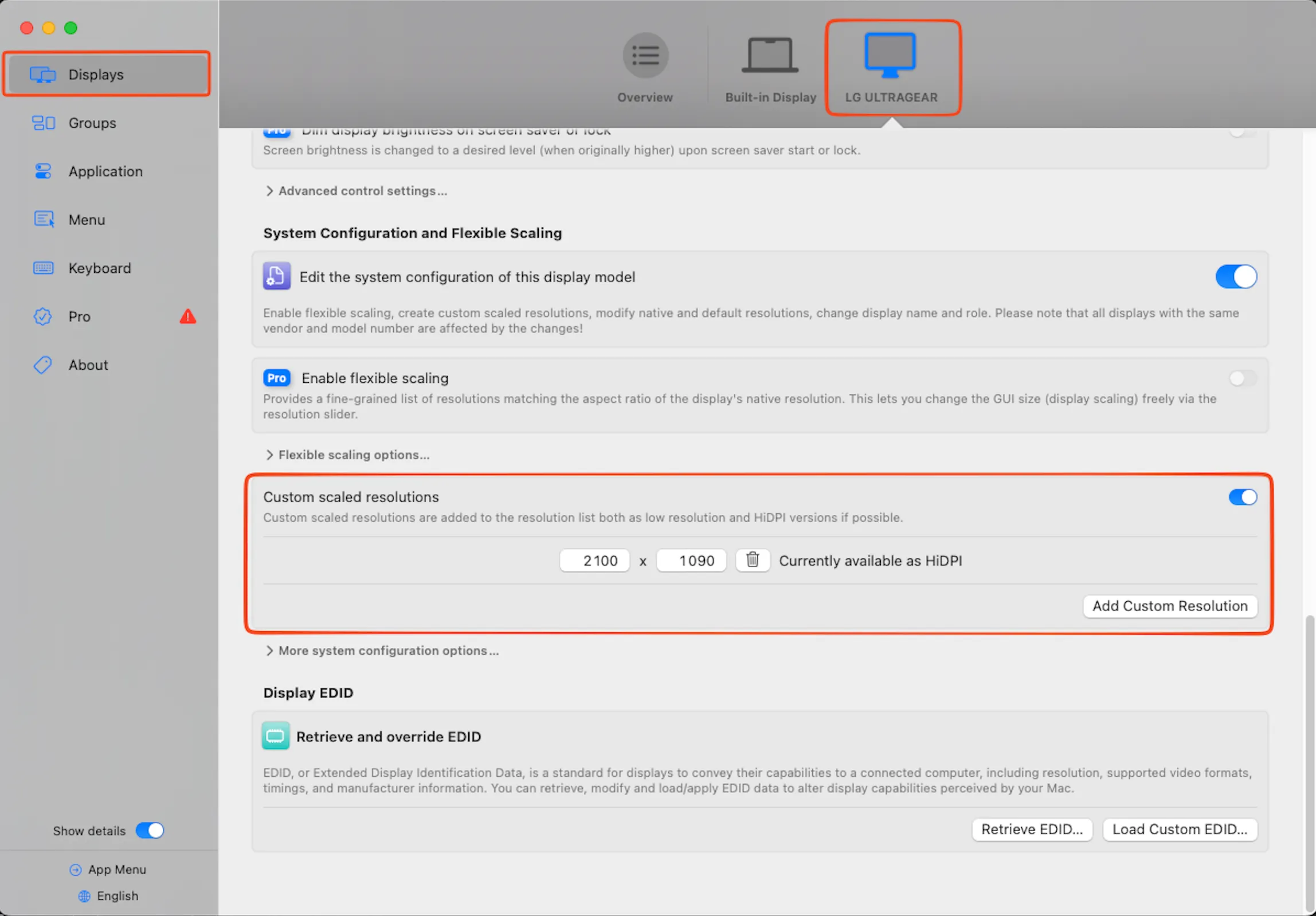
- In the “Displays” tab, select the ultrawide screen at the top, then go to the “Custom scaled resolutions” section to
add your custom resolution
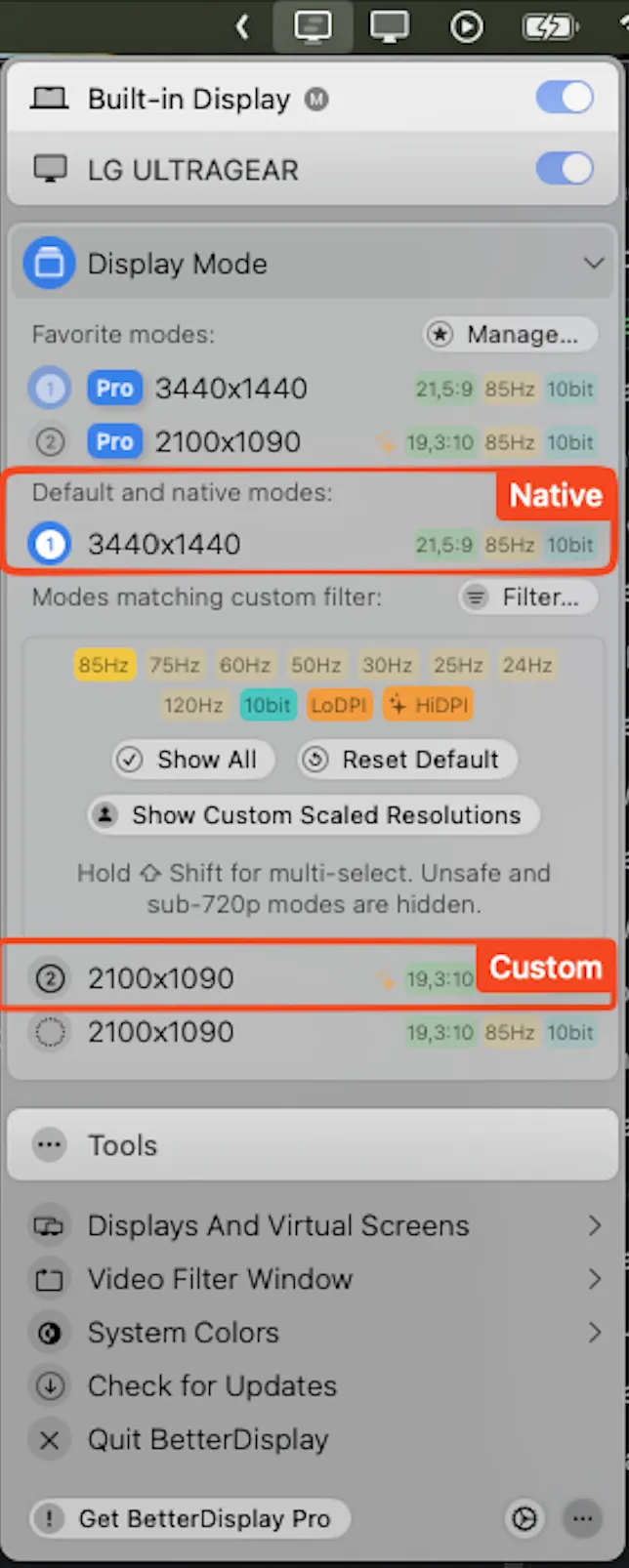
- Finally, from the macOS menu bar, “Display Modes” are available to quickly select your custom resolution.
Making the most of a large screen day to day
Once the screen-sharing issue is solved, the next question is everyday usage. A large screen that’s poorly used is just a lot of wasted space.
“Rectangle” for window management
On an ultrawide screen, moving windows with the mouse quickly becomes annoying. Rectangle adds a few simple shortcuts that change everything: screen splitting, left/right anchoring, and quick layouts in two or three zones.
It’s especially effective for maintaining a stable setup: IDE on one side, browser on the other, terminal always in the same place.
Custom screen sizes in the browser to test your app
When working on a large screen, it’s easy to forget what an interface looks like on a laptop or a standard monitor. Chromium-based browsers, as well as Firefox, allow you to add custom devices with precise resolutions.
This makes it easy to quickly test a layout on mobile, small laptops, standard laptops, desktop screens, or ultrawide displays, without randomly resizing windows.
The resolutions I actually use
After a few iterations, here are the screen sizes I ended up keeping. They cover most real-world cases, both for development and screen sharing.
| Device type | Resolution | Ratio | Notes |
|---|---|---|---|
| Small laptop / netbook | 1366 × 768 | 16:9 | |
| MacBook Air 13” | 1440 × 900 | 16:10 | |
| MacBook Pro 14” | 1512 × 982 | 16:10 | |
| Full HD | 1920 × 1080 | 16:9 | |
| WQHD / QHD | 2560 × 1440 | 16:9 | 27” displays |
| MacBook Pro 16” | 1728 × 1117 | 16:10 | |
| 4K UHD | 3840 × 2160 | 16:9 | |
| Ultrawide | 2560 × 1080 | 21:9 | 29” ultrawide |
| Ultrawide QHD | 3440 × 1440 | 21:9 | 34” ultrawide |
Conclusion
An ultrawide screen is a real productivity boost for development. But without the right tools, it quickly becomes a drawback as soon as you step outside a purely personal workflow.
With BetterDisplay for video calls, Rectangle for window management, and a properly configured browser, the ultrawide finally becomes as practical as it is comfortable.

About Quentin Lerebours
I’m an entrepreneur, but above all a developer. I’ve deliberately chosen to remain versatile so I can approach projects with a clear, cohesive overall vision. Development, sales, entrepreneurship, and project management are part of my daily life — and I wouldn’t have it any other way.